This post has a lot to cover. Before we get to any of it I want to take on the uncomfortable subject first: quality. Two incidents from the past two weeks deserve a public explanation, one was a bug that fits into our normal iteration loop and one was a serious mistake on my part. Both deserve the kind of explanation I would want if I were on the other side of the import.
How we think about quality
Codename One is a small open source company. We are not a 200-engineer platform team with a dedicated SRE rotation and a separate QA org. We move fast, fast enough that we ship meaningful new code every week, and we put a lot of effort into making sure that speed does not come at the cost of breaking your apps.
“A lot of effort” is doing some work in that sentence, so here is what it actually looks like:
| Layer | Coverage |
|---|---|
| Unit and integration tests | 710 Java test files exercised on every PR. |
| Screenshot tests | 45 tests producing 190+ golden PNGs that are diffed across the iOS simulator, Android emulator, JavaSE, and headless Chrome. Both the OpenGL and Metal backends are diffed in parallel. |
| ParparVM bytecode-translation suite | A separate, deeper test pass that exercises VM functionality (bytecode translation, garbage collector, native interop) beyond what the framework-level tests can reach. |
| Cross-platform build matrix | 24 GitHub workflows build every PR against iOS, Android, JavaSE, and JavaScript. |
| JDK matrix | JDK 8 build, JDK 11 through 25 runtime. |
That is a meaningful amount of automated coverage and it catches a lot before code ever lands. What it does not catch is brand new behaviour, because there is nothing yet to compare a brand new feature against. The first golden of a new test is also the bug, until somebody actually runs the feature and tells us so.
With that in mind, let’s talk about the two specific incidents from the past two weeks.
Sticky headers were half baked, and that was by design
Last week’s post introduced StickyHeaderContainer with an animated transition between section headers. Within a couple of days the issue tracker had #4849, the NONE and FADE transitions were not behaving correctly and the swap had visible jitter. We turned the fix around within hours of the report.
That round trip, ship, hear from a real user, fix, is the deal we make with the community. Our pixel-diff harness is excellent at catching regressions in code that already exists. It is structurally bad at catching the first version of a brand new component because there is nothing yet to compare against. We could have sat on StickyHeaderContainer for another two weeks polishing it in private and we would have shipped a worse component, because we would not have had Thomas’s eyes on it. Iterating in public, with a tight feedback loop, is how a team our size keeps moving.
The SIMD bug, which was my mistake
PR #4842 is a different story. The SIMD code on iOS uses alloca to put working buffers on the stack for speed. That is the right call for small buffers and the wrong call for large ones, past a certain size the stack request fails outright and the process crashes. The image API uses these buffers, and on large images the buffer crossed the threshold. Result: image API crash in production.
This was not a new feature. It was a change to existing, mature code. We took the precautions we always take when changing code with a long history, ran the existing tests, every existing test passed, and the patch shipped. The bug got through anyway because the test coverage validated the SIMD path on small images and never on the large ones that actually triggered the failure. That hole in the tests was mine to spot, and I did not spot it.
Once it was reported the fix turned around in well under 24 hours. The patched version detects the over-large case and falls back to a heap allocation. Small SIMD ops keep the fast alloca path. Large ones no longer crash. New tests cover the threshold case so this specific shape of bug cannot regress.
This should not have happened, but realistically it will happen again, not this exact bug, but one like it. Tests are not perfect, mine certainly are not. So the take home is the part I want to lean on:
Codename One is the first line of defense between bugs and your end users. We are not the last line. Test your application before you release. If your app supports it, use a beta channel (TestFlight on iOS, Play Console internal or closed tracks on Android) so a bug like this hits you before it hits the people who paid for your app. That tiny extra step is the most reliable protection your users have.
We are also actively brainstorming the next generation of crash protection inside the framework. The current crash protection sits at the EDT and catches RuntimeExceptions that user code throws. The next generation needs to extend further, into native crashes, into earlier startup, and into a more useful diagnostic payload that comes back to the developer instead of just the device log. There is no PR yet, we are still working out the shape, but it is the major framework-level investment we are making to give the community a stronger floor underneath their apps.
With the quality conversation out of the way, the rest of this post is about the things that actually shipped.
Metal is here
PR #4799 is the largest single change we have landed in months: a complete Metal rendering backend for iOS. It sits next to the existing OpenGL ES 2 path, behind a single build hint, with its own CI job and its own pixel-diff goldens.
Metal is Apple’s modern graphics API. OpenGL on iOS was deprecated by Apple back in iOS 12, it still runs today and we kept it running for years, but “deprecated” on Apple is a slow countdown that ends with the platform pulling support. Moving to Metal now is how we get ahead of that, and it brings real benefits to your apps:
- Better rendering performance. Lower draw-call overhead, modern command-encoder batching, and pipeline state caching add up to smoother scrolling and faster transitions on the same hardware.
- Less battery use. Metal’s reduced CPU overhead per frame means the GPU spends less time idling and the CPU spends less time bookkeeping. Long-running, graphics-heavy apps benefit the most.
- Crisper text. Glyphs go through a CoreText atlas, which produces noticeably sharper rendering at the same size, with proper kerning and correct handling of complex scripts.
- Pure-GPU gradients. Linear and radial gradients render entirely on the GPU instead of round-tripping through a
CGContextbitmap. - Access to modern Apple graphics features. New iOS rendering features (variable-rate shading, mesh shaders, ray tracing on Apple silicon) are Metal-only. Sticking with GL means watching that train leave without us.
To enable Metal in your project, set the build hint:
ios.metal=true
Everything else stays the same. The Java surface is unchanged, your existing code keeps working.
We plan to flip Metal to be the default within two weeks, assuming no major issues surface. The ios.metal hint will stay around (set it to false to opt back into GL), but new projects and the build server’s default behaviour will move over. If you ship an iOS app, please set the hint now and put your real flows through it. We want regressions to surface against your real screens, not the day after the default changes.
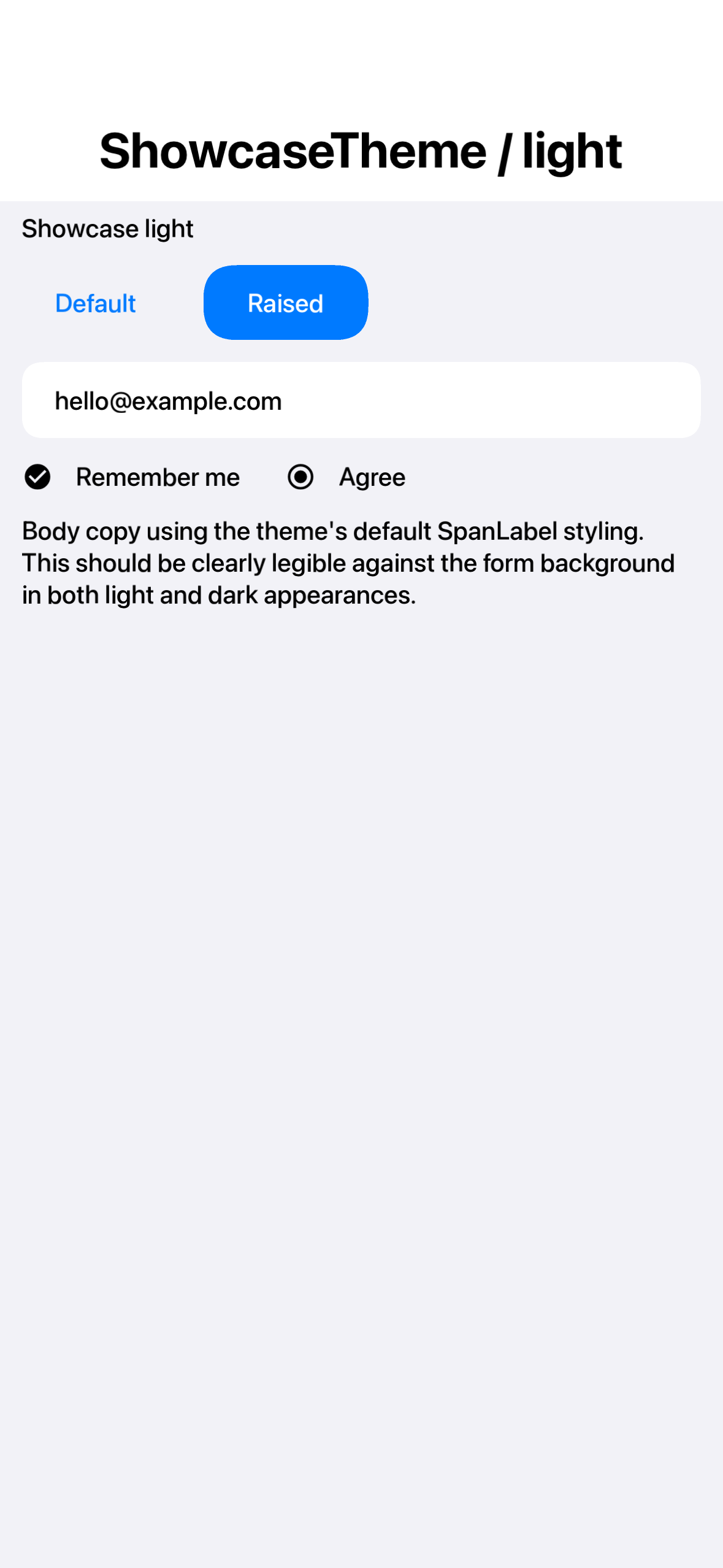
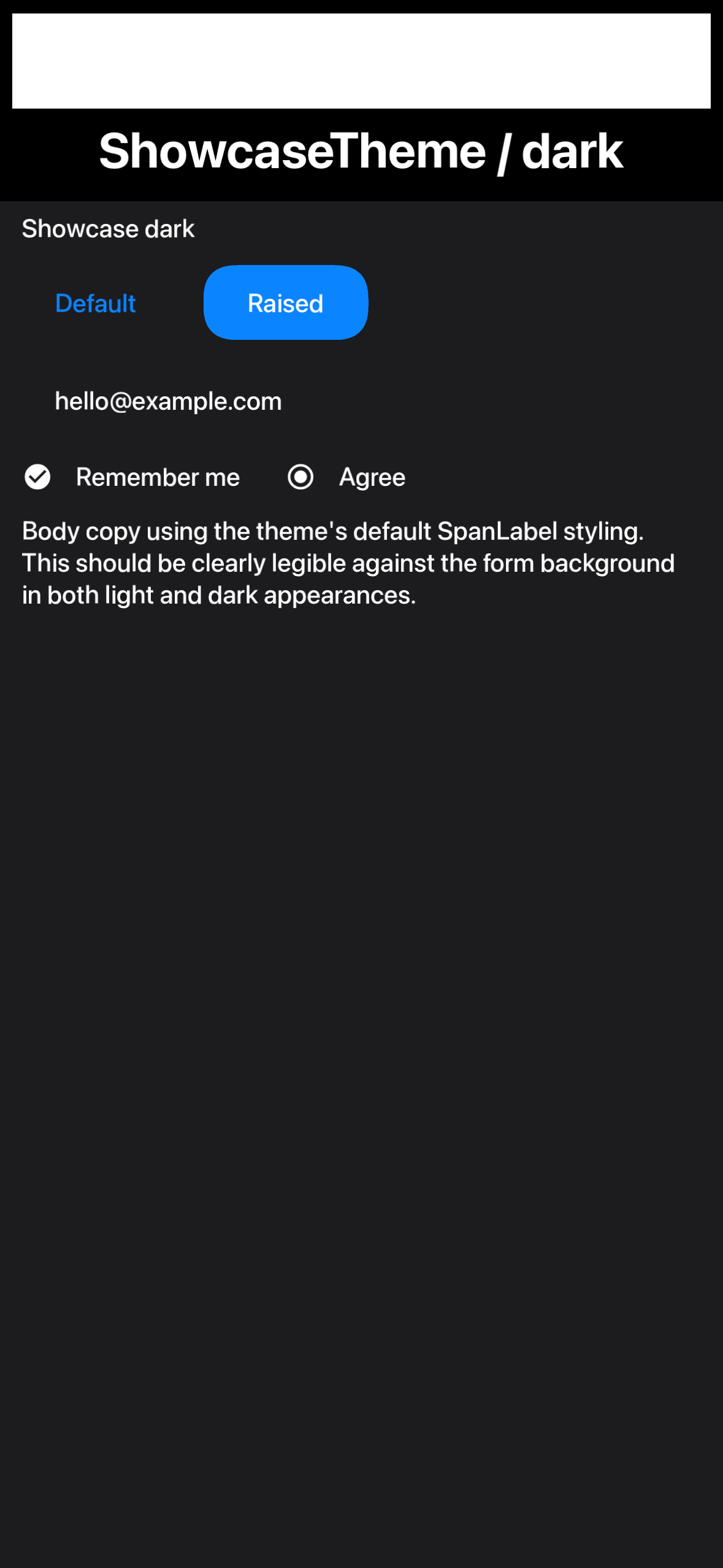
The most user-visible improvement from the Metal port is text. Here is the ShowcaseTheme capture from the Metal screenshot suite:
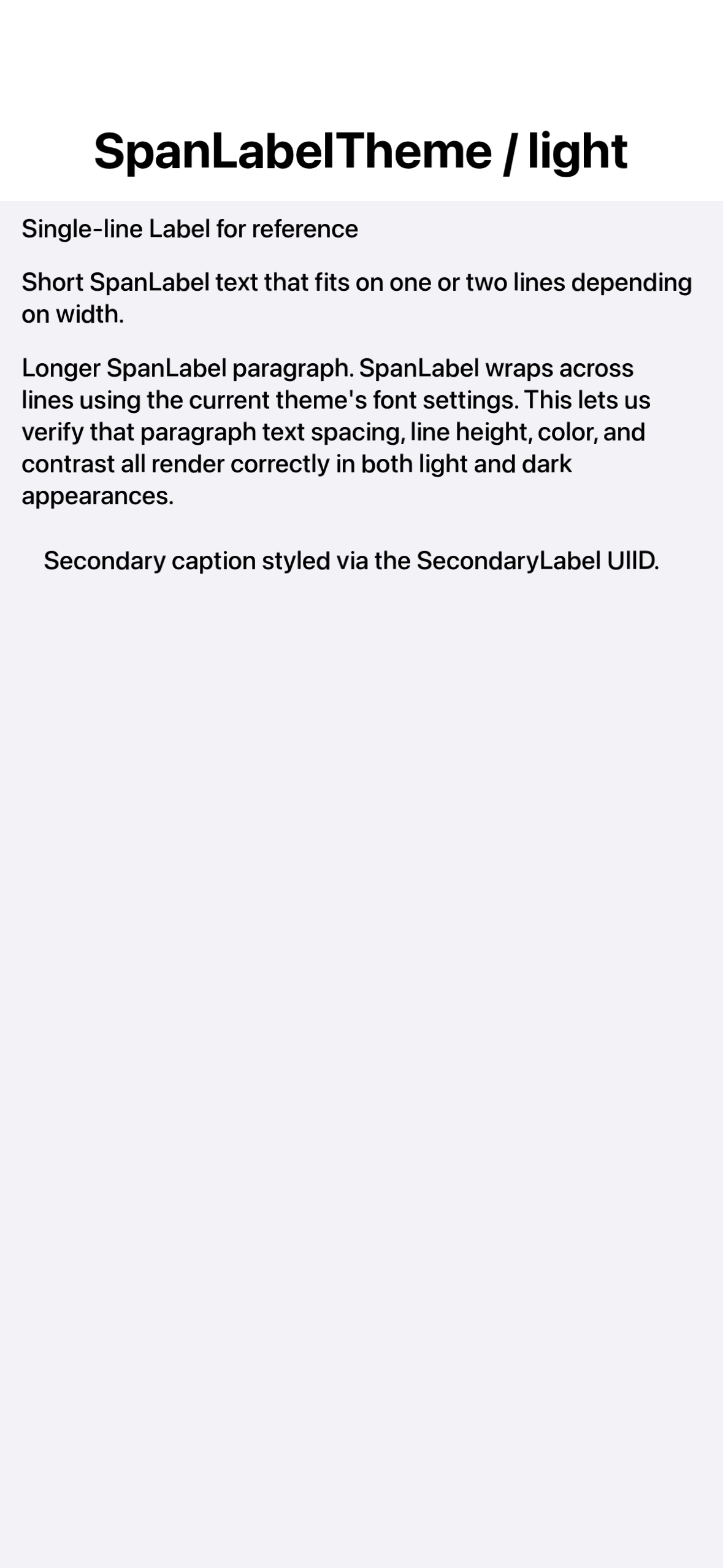
And the SpanLabelTheme capture, which is the real test for body-copy rendering, multiple lines, variable widths, the kind of paragraphs that show up in real apps:
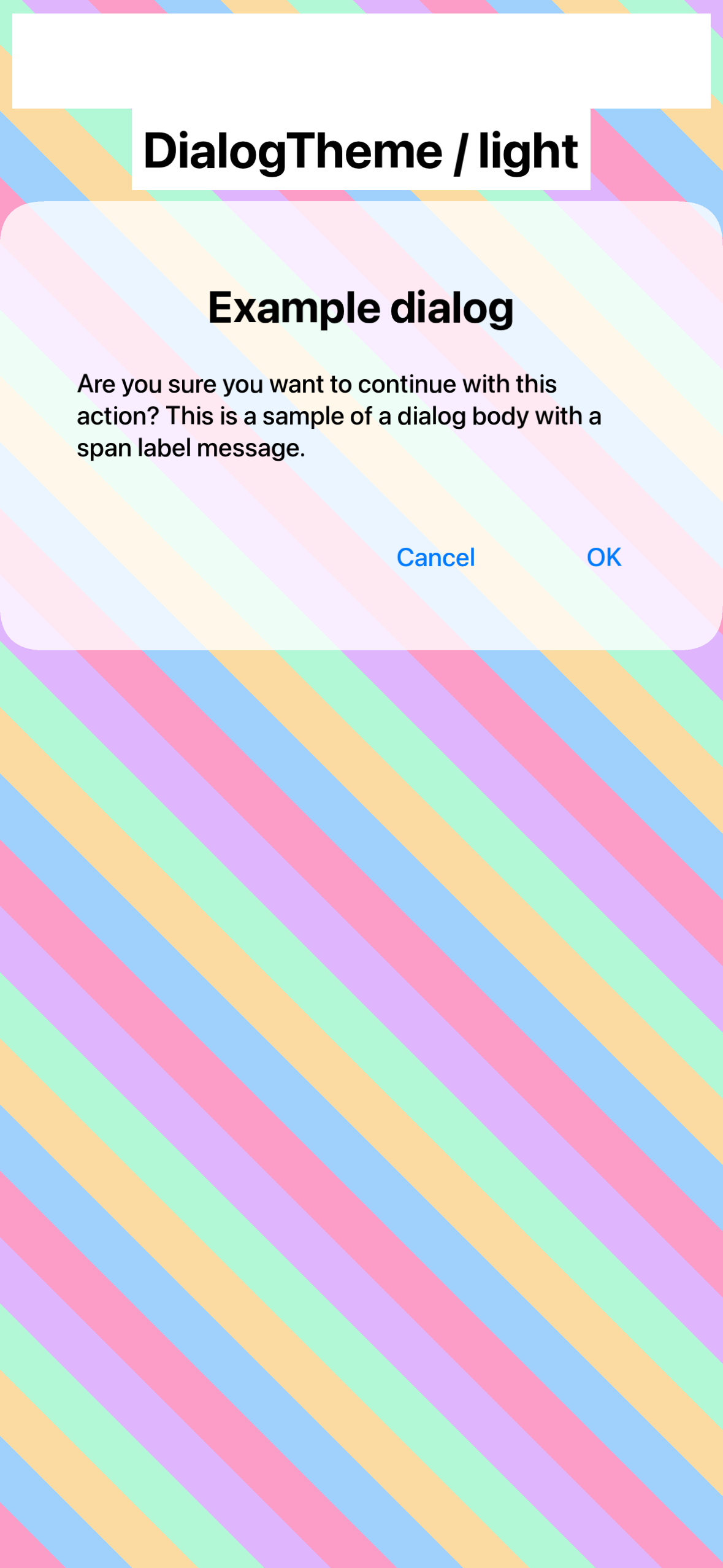
The Metal Dialog capture is also worth showing because the translucent surface composites correctly against the textured backdrop:
The end of the skin downloader
PR #4758 ships the Skin Designer as a JavaScript bundle, embedded into the website at /skindesigner/ the same way the Playground and Initializr are embedded. You can build a skin in the browser, save it, and use it in your simulator without installing anything.
This is bigger than a website convenience. It is how we get out of the skin business.
For the entire history of Codename One, “no skin for the iPhone 16 Pro Max” or “no skin for the iPad mini 7” has been a recurring complaint, and we have published skins as fast as we could. That model never scaled. Apple ships new device sizes faster than any of us want to maintain a parallel skin catalogue, and Android has effectively infinite device shapes. Today we are deprecating the skin downloader and moving to a generic browser-based authoring tool.
To be clear about what is changing:
- Existing skins are not going anywhere. Every skin that ships today will continue to work, will continue to load in the simulator, and will continue to be supported. We are not removing them. If your team has a workflow built around an existing skin, that workflow keeps working.
- We will stop issuing new skins. When the next iPhone or iPad ships, we will not publish an official skin for it. Anyone can build one in the new designer in minutes, and that “anyone” includes us, of course, but it also includes you.
The “no skin for X” problem is solved generically. If you are running a niche enterprise app on a less-common Android device, you no longer have to wait on us to produce a skin for it. Build it once, drop it into your team’s shared assets, done.
How the wizard works
The Skin Designer turns a device specification (resolution, PPI, fonts, safe-area insets, cutouts) into a .skin file that the JavaSE simulator can load. It runs in your browser. There is nothing to install. The wizard is intentionally opinionated. It ships with a curated device catalog, generates the device frame procedurally, and writes a skin layout that matches the iPhoneTheme.res, iOS7Theme.res, and android_holo_light.res themes shipped with Codename One.
If you only want a skin and don’t care how it is built, pick a device, accept the defaults, click Finish, then Download skin. The file is ready to load via Add in the simulator’s Skins menu.
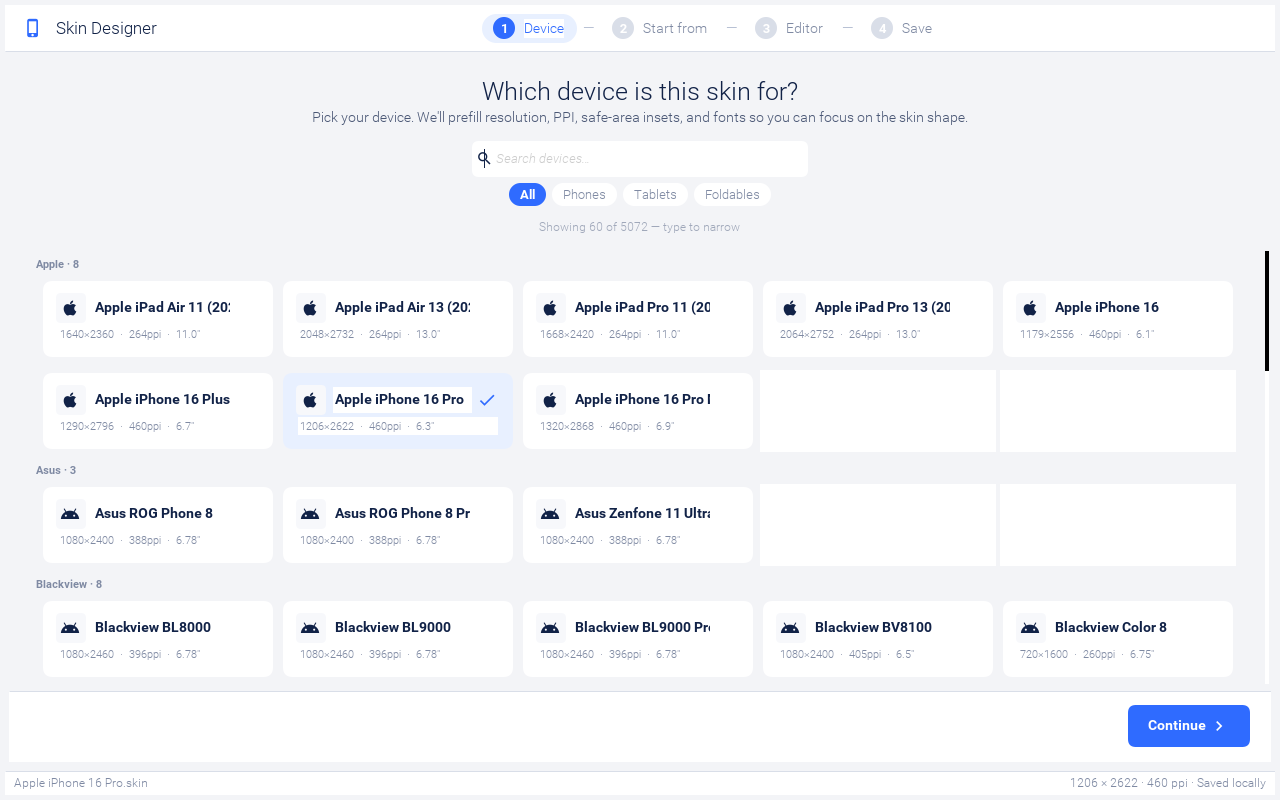
Stage 1, pick a device. The first step shows a card per device from the bundled catalog. The search box filters by name (it matches both the model and the brand) and the chips below narrow by form factor: All / Phones / Tablets / Foldables. Picking a device pulls in its resolution, PPI, screen size, default safe-area insets, and the iOS or Android system font names from the catalog, then seeds a sensible starting frame: notch, island, or hole presets are applied automatically based on the device’s hardware. The catalog is large, the grid is capped to the most recent matches by default, type into the search field to find older or less-common devices.
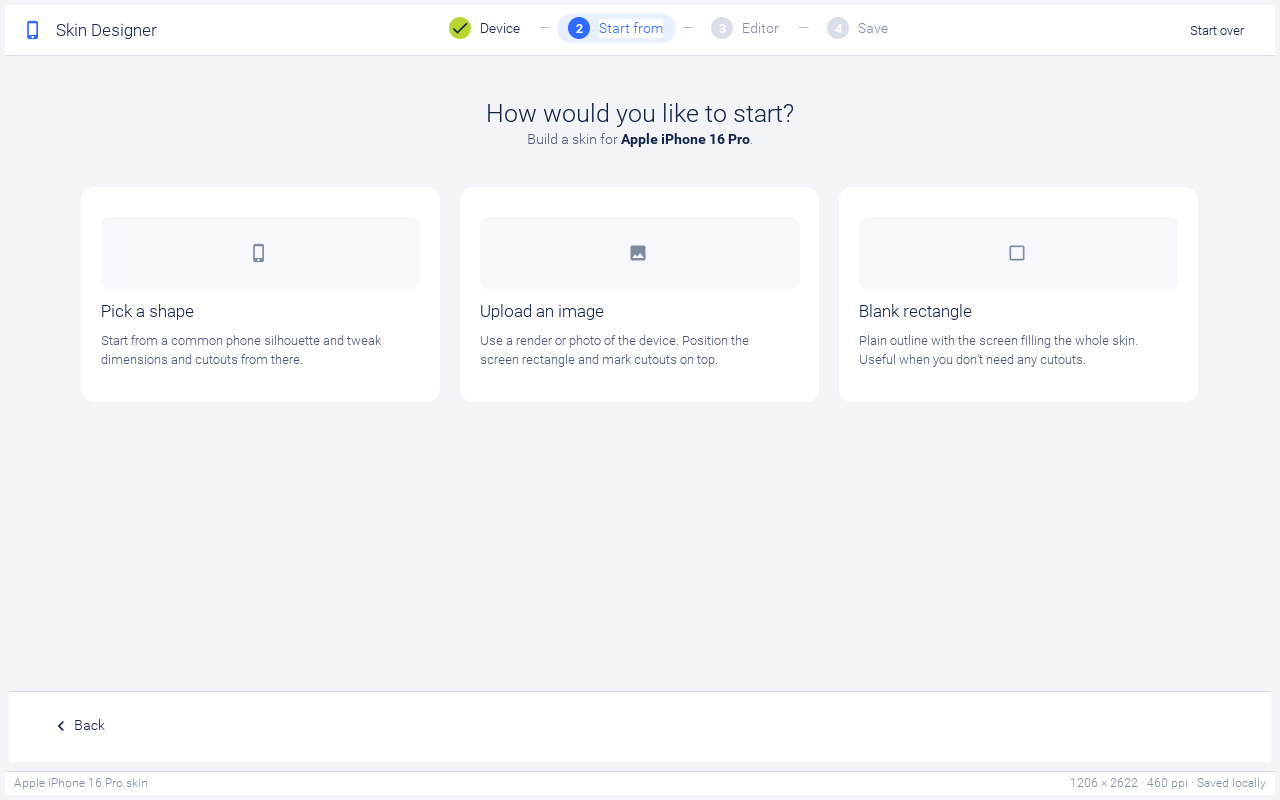
Stage 2, pick a starting source. There are three ways to seed the skin’s body image:
- Pick a shape generates the device frame procedurally from a small preset library (rounded rect, notch, dynamic island, punch-hole, corner hole, classic home-button). The frame is rendered as a dark gradient with the screen rect (and any cutouts) carved into it. Best when you want a generic-looking iPhone or Android frame and don’t care about exact hardware fidelity.
- Upload an image opens an image picker. The wizard scales the image into the device’s resolution, then carves the screen rect and cutouts on top. Use this when you have a marketing render of the specific device you are targeting.
- Blank rectangle collapses the bezel and corner radius to almost nothing, drops every cutout, and turns the home indicator off. The screen fills the entire skin. Useful for desktop or web simulators where the device frame would just be visual noise.
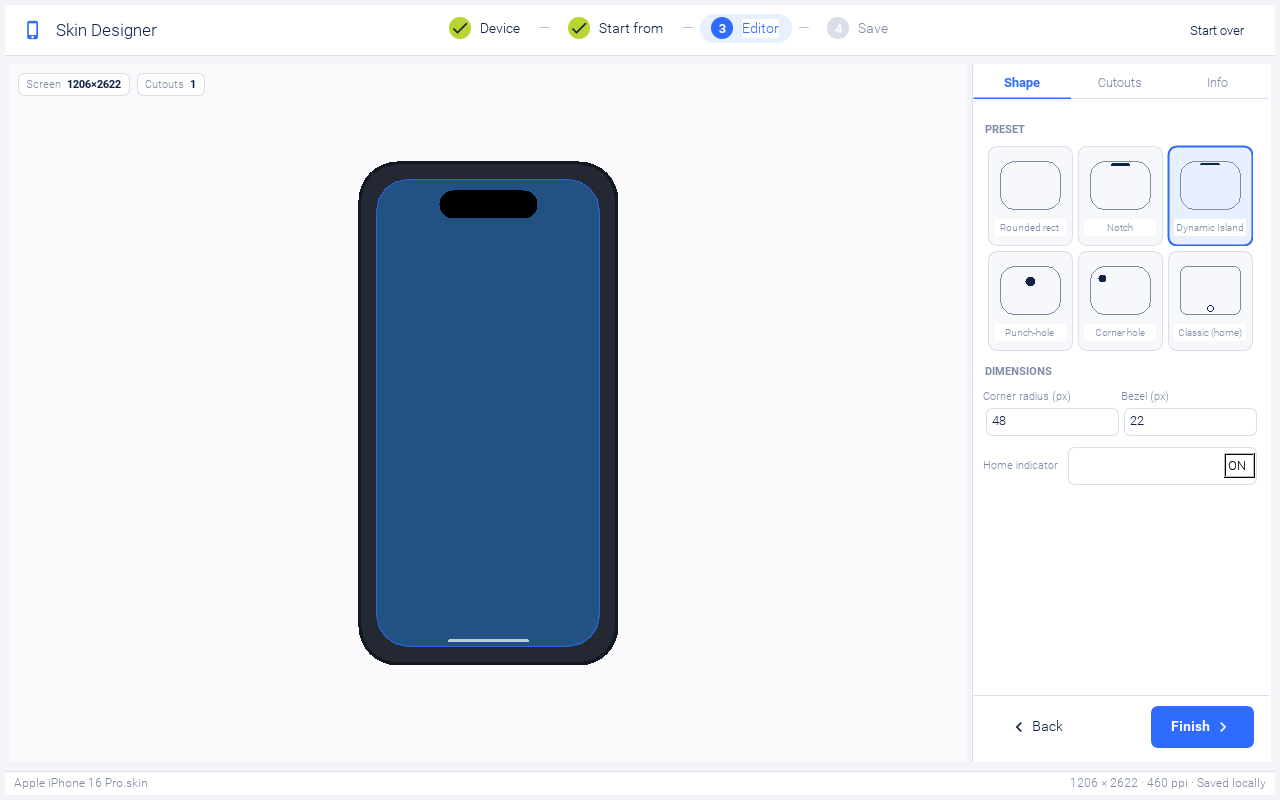
Stage 3, the editor. The editor is split into two panes: a live preview on the left that paints the device frame, screen tint, cutouts, and home indicator, and a sidebar on the right with three tabs.
The Shape tab shows a preset grid (Rounded rect, Notch, Dynamic Island, Punch-hole, Corner hole, Classic home) and dimension fields for corner radius, bezel thickness, and a toggle for the bottom home indicator. iPhones from X onward and most modern Androids should leave the indicator on, classic devices with a hardware home button should turn it off.
The Cutouts tab lists every cutout currently on the skin. Tap a row to expand its width, height, and offset fields. The three add buttons at the bottom seed a sensible default of each type. Notch (180 x 30 viewbox px) is a physical hardware cutout drawn in the device frame above the screen rect, mirroring iPhone X / 11 / 12 / 13 hardware. Island (120 x 35) is a Dynamic Island, software-reserved space rendered as an opaque pill inside the screen rect, floating on top of the iOS status bar. Hole (28 x 28) is an Android punch-hole camera, rendered like the island. When the wizard generates the .skin, it automatically extends safePortraitTop to cover any in-screen cutouts so app content lands below the floating shape.
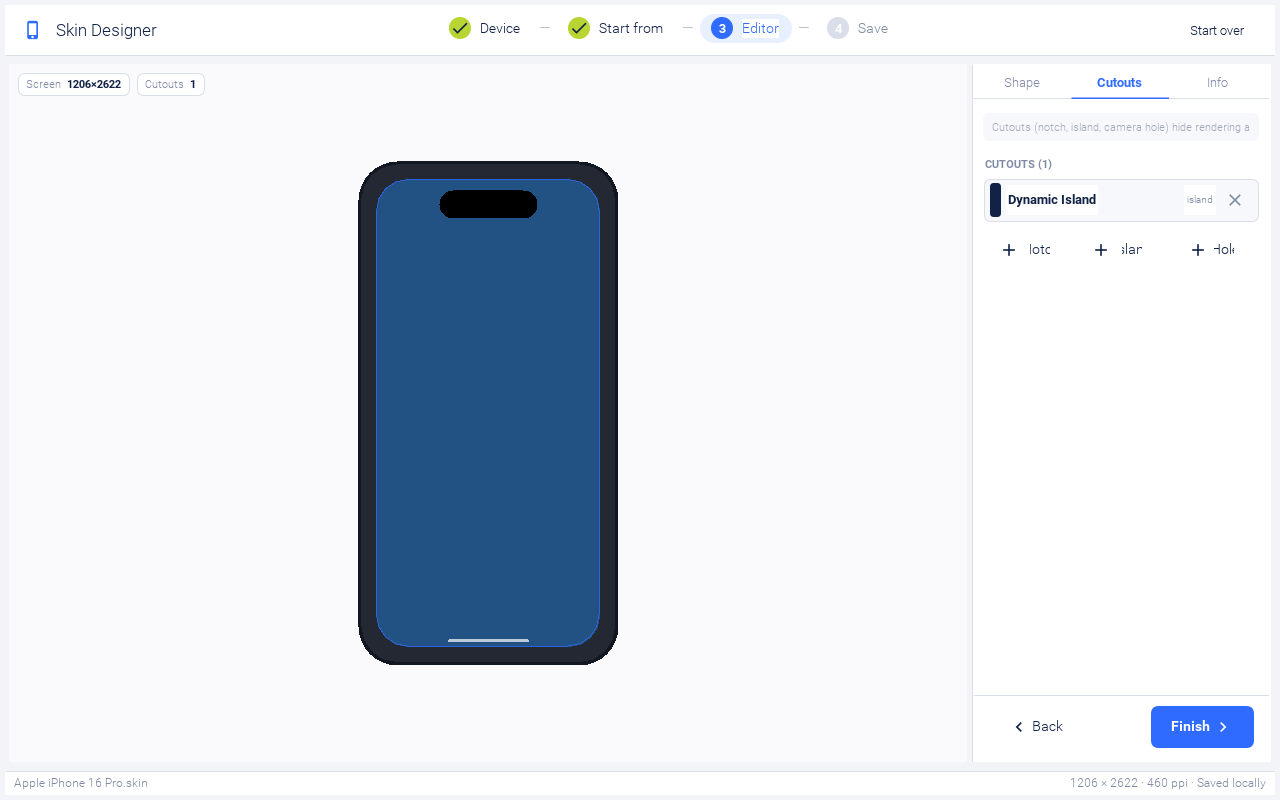
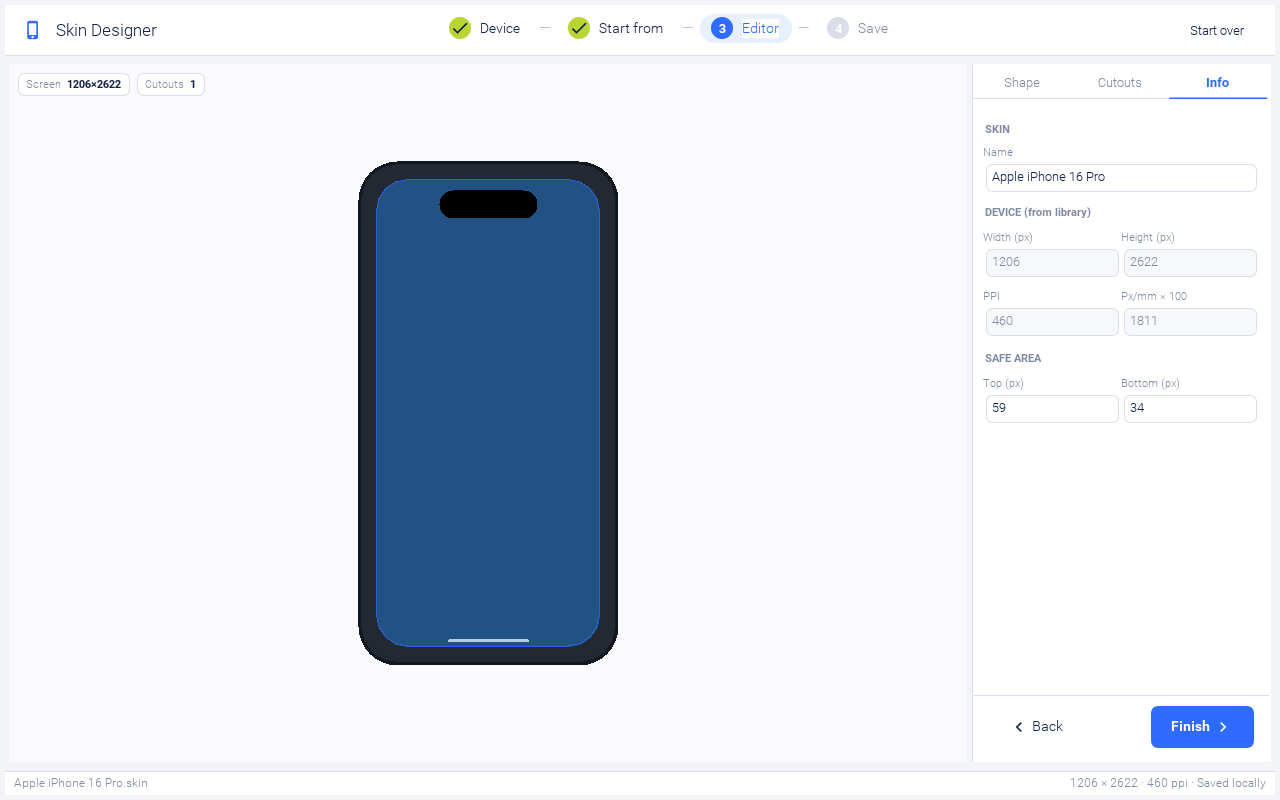
The Info tab is mostly read-only and shows what is about to be written into skin.properties: name, width, height, PPI, pixels-per-millimeter, and the user-editable safe-area insets. The wizard intentionally does not write smallFontSize, mediumFontSize, or largeFontSize, when those are absent the simulator auto-derives them from pixelMilliRatio, which is what you want on high-PPI screens.
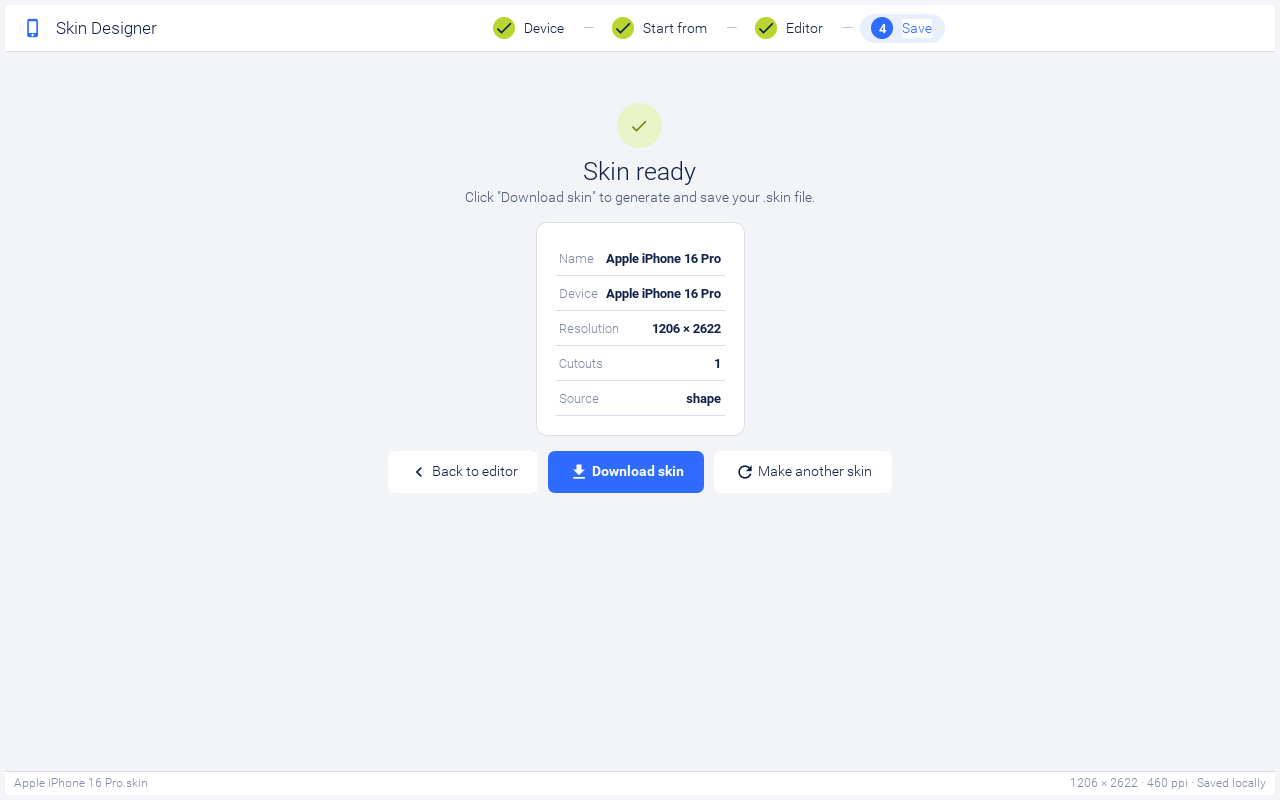
Stage 4, finish and download. Clicking Finish renders the portrait skin image at the device’s actual resolution with rounded corners, transparent screen, opaque cutouts, and a home indicator if enabled. It synthesises the landscape skin by 90-degree rotation, writes the skin_map.png overlays that mark the screen rectangle for the simulator’s screen-position detection, bundles the appropriate native theme inside the skin zip, and writes skin.properties with the platform metadata, safe-area, PPI, and display rect. Clicking Download skin hands the file to the browser’s download dialog. After the file is on disk, drop it into your simulator’s skins folder (or use the Add command in the simulator’s Skins menu) and your new device should appear in the picker.
A generated .skin is just a renamed zip:
Apple-iPhone-16-Pro.skin/
  skin.png            # portrait body (device frame + transparent screen + cutouts)
  skin_l.png          # 90-degree rotated portrait
  skin_map.png        # black rect = screen, white = frame, used for hit-testing
  skin_map_l.png      # rotated map
  iOS7Theme.res       # bundled native theme (or android_holo_light.res / winTheme.res)
  skin.properties     # platform metadata, safe-area, PPI, display rect
The full developer-guide chapter at Skin-Designer.asciidoc walks through every stage with annotated screenshots and documents the skin.properties keys the wizard writes (roundScreen, displayX/Y/Width/Height, safePortrait*, safeLandscape*, overrideNames, system font families, PPI, and pixel ratio).
Eating our own dog food
While we’re talking about the Skin Designer, this is the right moment to point out something I think is genuinely worth highlighting. The Initializr, the Playground, and the Skin Designer are all open source Codename One apps. They are written in Java using the same Codename One UI framework you use to build your iOS and Android apps, and they are deployed to the browser through our JavaScript port.
Every interaction you have with these tools, the device picker grid, the live preview rendering the device frame and cutouts, the form-driven editor with its tabbed sidebar, the file generation that bundles a .skin zip in your browser tab, is the same Codename One code that ships in your apps. The Container, Form, BoxLayout, theming, and event-handling code is identical to what you would write for a phone build. The JavaScript port translates it into something a browser can run.
These three tools are the most direct demonstration we can give of what Codename One is capable of: real, non-trivial UIs, with state, file I/O, image generation, and complex layouts, running smoothly inside a browser tab. If you have ever wondered whether the JavaScript port is production-grade enough for a real application, the Initializr, Playground, and Skin Designer are your answer. They are also the answer to “can Codename One build apps that go beyond mobile”. Same codebase, deployed to a fourth target, with no rewrite.
The source for all three lives in the same CodenameOne repository the framework itself does. If you want to see how a non-trivial Codename One app is structured, those are three good places to start reading.
iOS multi-line TextArea: Return as Done
PR #4859, driven by issue #4854, gives multi-line TextArea an opt-in flag that makes the iOS keyboard’s Return key act as Done. It closes the editor and fires the Done listener instead of inserting a newline. This is the iOS Reminders-app behaviour: a growing, multi-line task-title field where Return finishes the entry.
The reason it has to be a flag is that real iOS does not expose this as a built-in primitive. Reminders implements it on a UITextView whose delegate intercepts \n in shouldChangeTextInRange:. We replicate that exactly, gated behind a client property so existing layouts are untouched:
TextArea ta = new TextArea("", 3, 30);
ta.putClientProperty("iosReturnExitsEditing", Boolean.TRUE);
ta.setDoneListener(e -> { /* Return / Done was tapped */ });
While the flag is set, the keyboard’s Return key is relabelled to Done (UIReturnKeyDone). Default behaviour is unchanged: the flag defaults to off, only takes effect on multi-line TextAreas, and only intercepts an exact "\n" replacement so pasted multi-line text is unaffected.
Diagnostics for status-bar tap scroll-to-top
PR #4868, driven by issue #3589, adds three complementary diagnostics for the iOS status-bar tap path. We shipped a fix earlier (#4857) and the reporter still saw no scroll on device. Rather than another sweep in the dark, we built tools to make the path observable.
- Simulator menu,
Simulate > iOS Status Bar Tap. Synthesises the same(displayWidth/2, 0)tap thatscrollViewShouldScrollToTop:dispatches, pops a dialog reporting the responder UIID, the build-hint state, and an OK / PROBLEM verdict, then actually firespointerPressedandpointerReleasedso any wired-up scroll-to-top is observable. - Device-side properties.
Display.getProperty("cn1.iosStatusBarTap.count"),cn1.iosStatusBarTap.lastEpochMillis,cn1.iosStatusBarTap.lastX/Y, andcn1.iosStatusBarTap.proxyInstalledlet you inspect the path on a real iPhone. Run your app on the device, tap the status bar, and read the property. That distinguishes “iOS never delivered the message” from “iOS delivered it but a CodenameOne component intercepted the tap”. - Regression coverage.
StatusBarTapDiagnosticScreenshotTestexercises the exact same code path through a 2x3 frame grid, with the visible counter rising and the scroll position alternating, so future regressions surface in CI.
Simulator: Dark / Light mode toggle
PR #4871 adds a Dark / Light Mode submenu under the simulator’s Simulate menu with three options: Dark Mode, Light Mode, and Unsupported (the default).
Selecting an option flips Display.isDarkMode() (Boolean.TRUE / Boolean.FALSE / null) and calls refreshSkin(...) so themes that branch on @darkModeBool re-render immediately. The choice is persisted under the cn1.simulator.darkMode Preference so the simulator restarts in the mode you left it.
Combined with the Native Theme menu we shipped two weeks ago, you can now sit on a single skin and flip between iOS Modern, Material 3, iOS 7, and Holo Light, in light, dark, and unsupported, in seconds. The everyday win is being able to verify your own theme looks right in dark mode without restarting the simulator.
Heads-up: weekend backend maintenance
This weekend we will be doing some maintenance on our build backend servers. The work is mostly invisible from the outside but it touches enough of the infrastructure that you might see intermittent build issues during the window: slower-than-usual builds, the occasional retry, possibly a short period where new builds are queued.
We are doing it because the underlying backend needs to move forward, and the cost of putting that work off keeps compounding. We will keep the disruption as short as we can. If you have a hard release deadline that lands this weekend, please plan around it. Otherwise the impact should be small and you can build through it normally.
Warning: Android 16 will effectively disallow locking orientation
Thanks to Durank for flagging #4879. The Android 16 behavior changes include a meaningful change to how Android handles orientation, in short, on large-screen devices the platform will ignore an app’s request to lock orientation. If your app calls Display.lockOrientation(...) or sets a fixed orientation in the Android manifest, that lock will be honoured on phones but effectively ignored on tablets and foldables once the device targets Android 16.
There is not much we can do about this on the framework side. It is a platform-level decision and there is no public opt-out for general apps. The realistic path forward is to design layouts that work in both orientations, and to test your app against both portrait and landscape on a tablet before Android 16 reaches your users. We will keep watching for any opt-in path Google publishes, but for the moment please plan accordingly.
Why the version jumped to 7.0.242
A small note on versioning: the current release is 7.0.242, not 7.0.238 as you might expect from the cadence. The gap is real and worth explaining. We made a fix to the Maven archetype that brings over the features we added in the Codename One Initializr to projects created from the command line. The change itself is straightforward, but it interacted badly with our release build automation and we had to delete several releases along the way to get the pipeline back on its feet. The version numbers we burned in the process are the visible scar. The bright side is that command-line mvn archetype:generate now produces projects that line up with what the Initializr generates, which is what we wanted all along.
Wrapping up
We closed 24 issues in the past week, a meaningful share of them direct beneficiaries of the Metal port. Old GL-only rasterisation diffs, font sizing on retina, polygon drawing artefacts, perspective transform issues, things that the Metal pipeline simply renders correctly out of the box. Migrating the rendering layer turned out to be the cleanest way to retire a long tail of small bugs at once. With the new Skin Designer landing in the same week, two long-running structural problems went from “we should fix this someday” to “this is fixed and shipping”.
If you ship an iOS app, please flip ios.metal=true this week and run your real app through it. We want to find any remaining issues now, not the day we flip the default. Issue tracker is here, the Playground is the easiest place to poke at the new themes, the Skin Designer is live on the site.
A specific thank-you this week to Thomas (@ThomasH99) for the sticky-header transition report and the Picker centring follow-up, Francesco Galgani (@jsfan3) for the iOS Reminders-style Return RFE, and the reporter on #3589 for sticking with us through a multi-PR diagnosis on the status-bar tap. The “tests cannot catch everything” section above is also a “and that is why we need you” section. It works because you keep filing.
Discussion
Join the conversation via GitHub Discussions.